
Use case
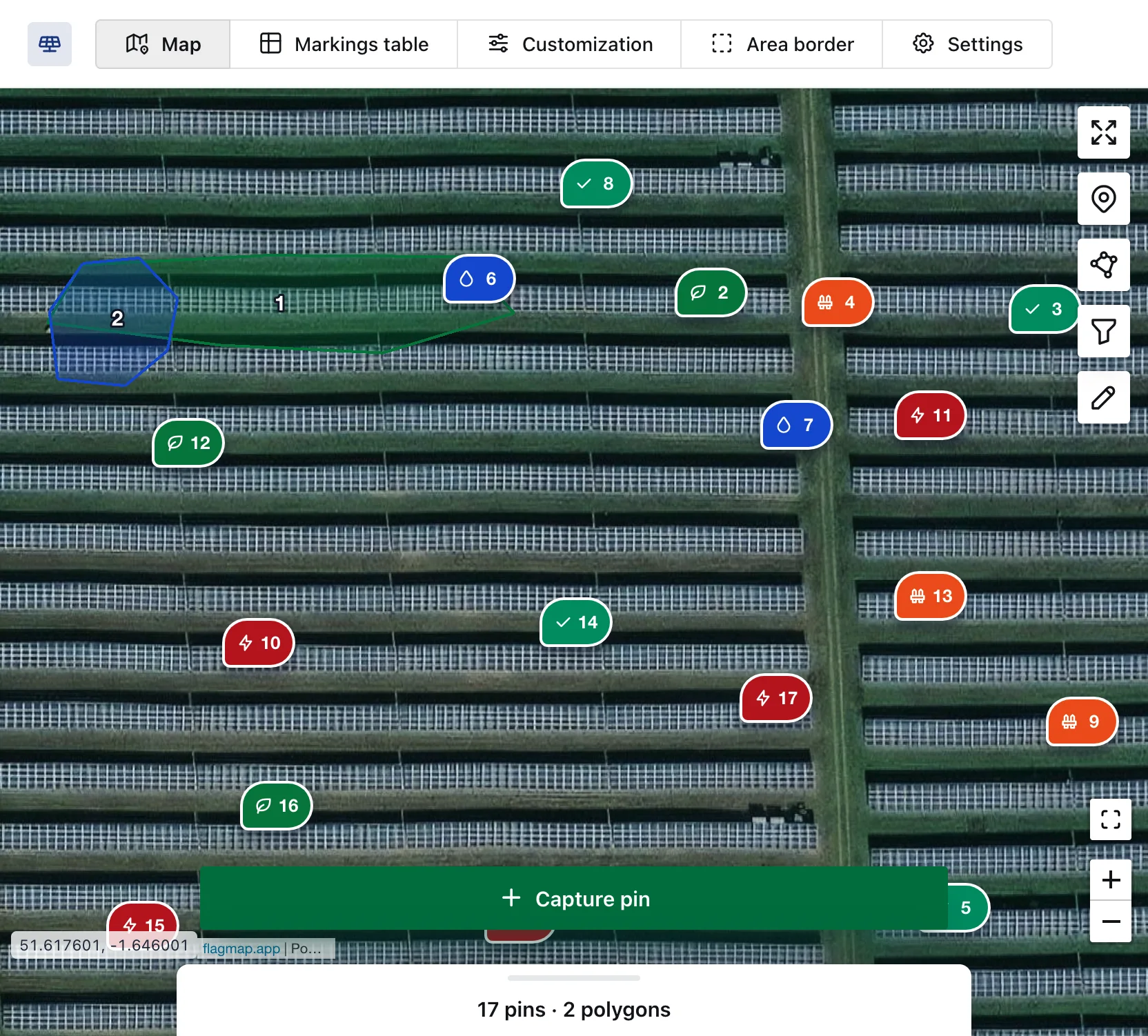
Every snag marked on the site, with its photo.
Walk the site, mark each defect on an aerial photo at the spot where it is, and assign it. The list is finished when the walk is.
Start for free. No credit card required.
The old way
Where paper, photos and memory let you down.
Five versions of one list
The list goes round as a spreadsheet, and the person who fixed an item is working from last week's copy.
Photos apart from their items
The photo that shows the defect sits in a gallery, with nothing to say which item it belongs to.
"Where exactly?"
An item described in words costs a phone call, or a second walk, before anyone can fix it.
How it works
Start recording in three steps.
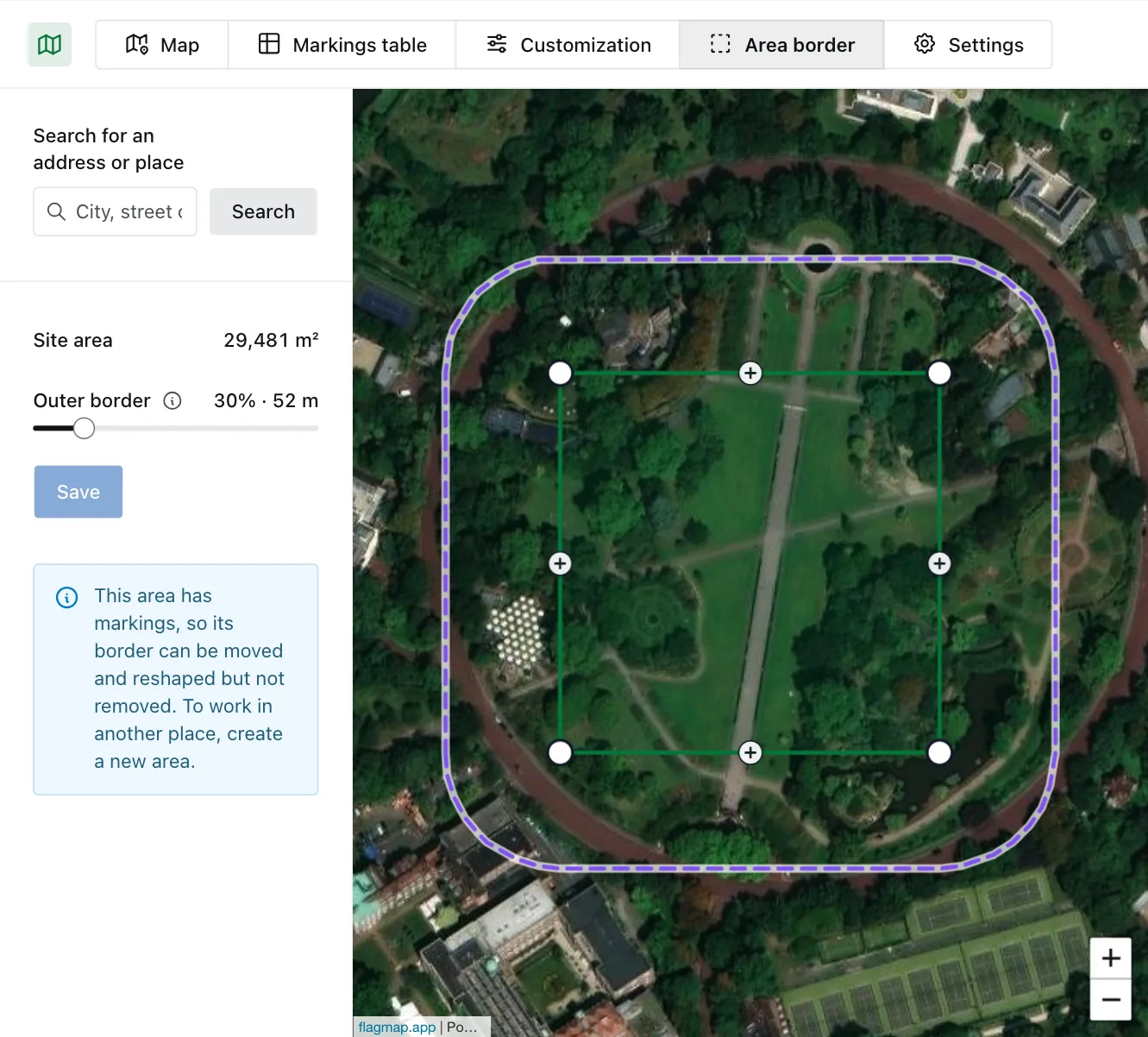
Draw the site
Search for the address and tap the corners of the site on the aerial photo.
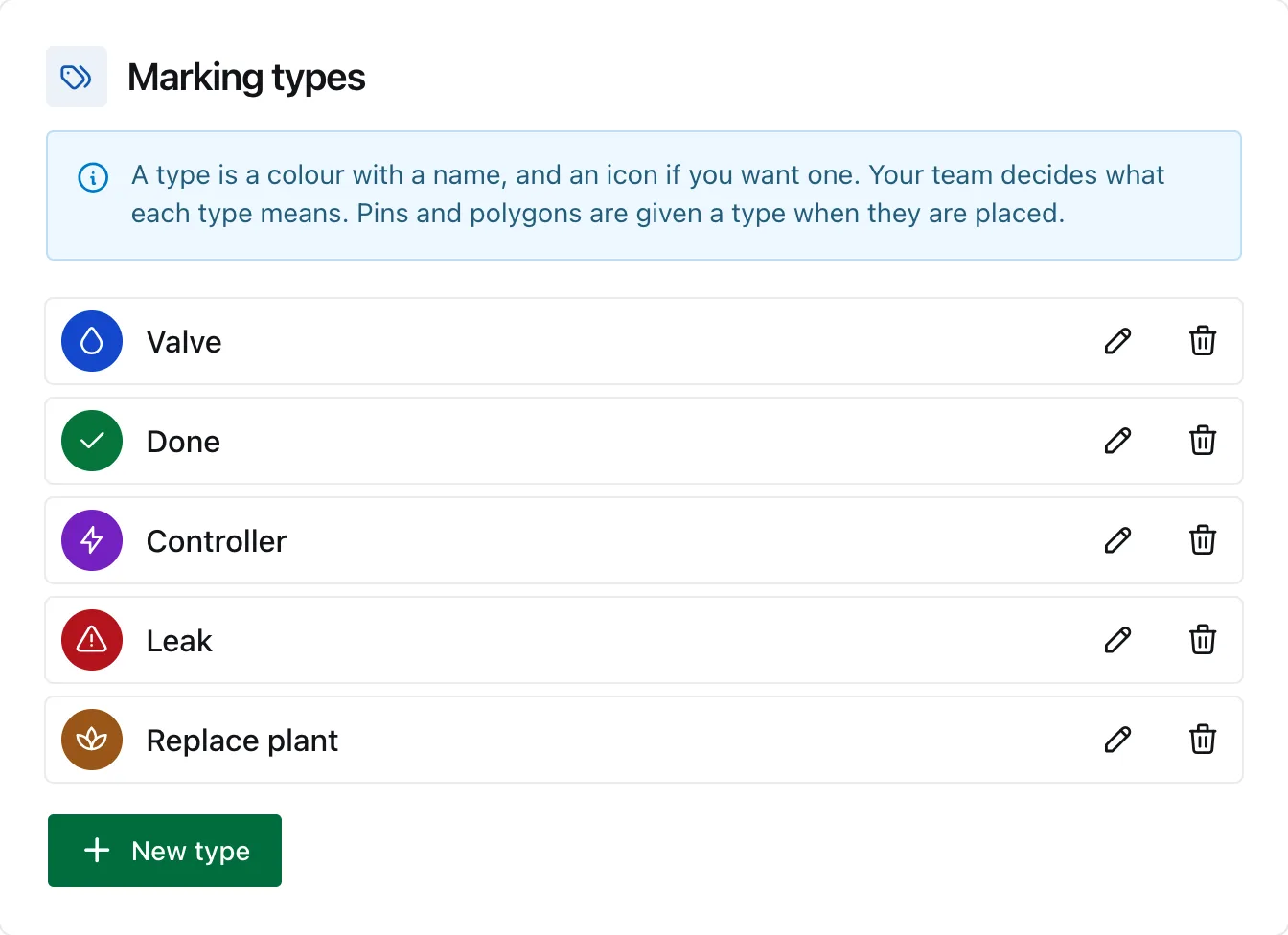
Set up what you record
Create types such as Defect, In progress and Fixed. Add form fields for the item, the priority and the contractor.
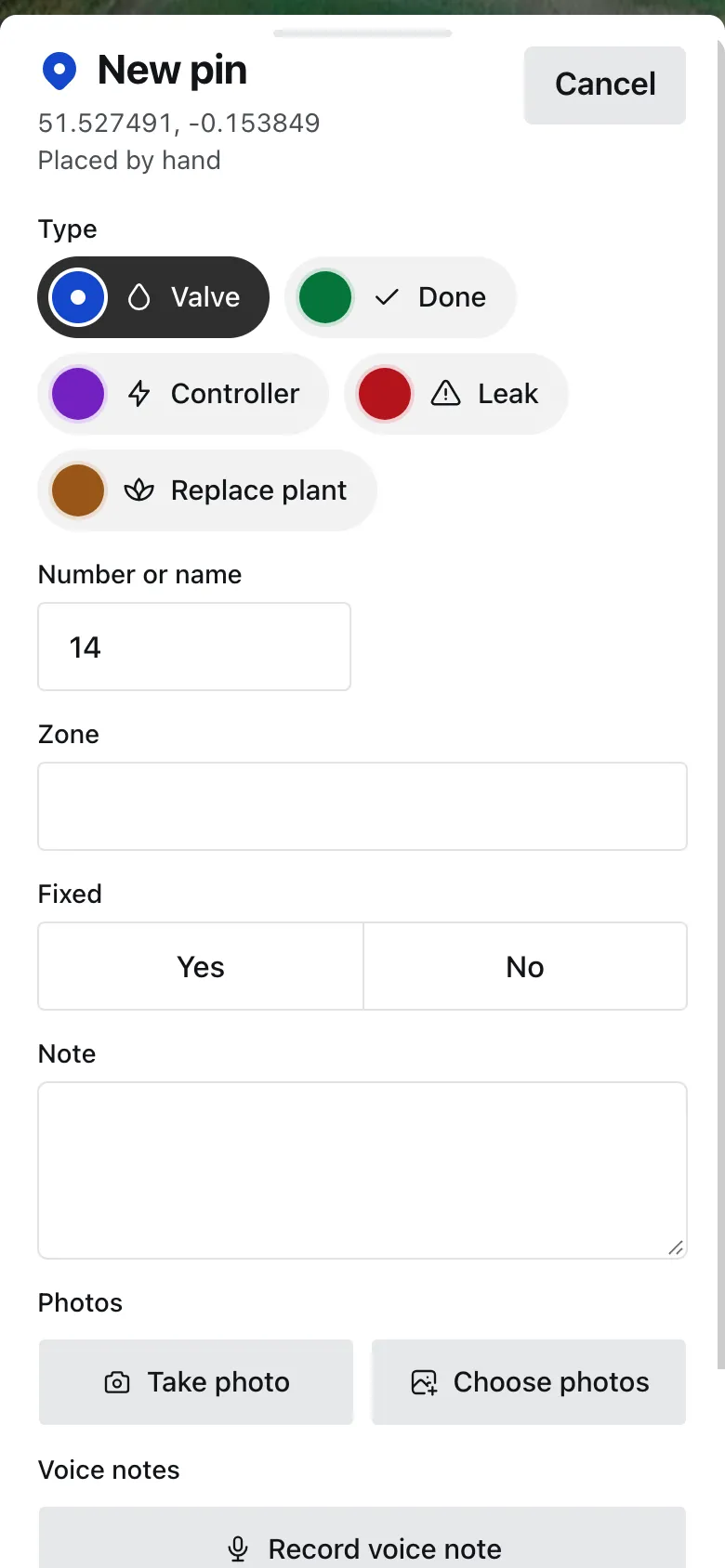
Mark each item
Stand at the defect, tap the map, choose the type and take the photo.
What you get
One list, marked on the site itself.
The walk
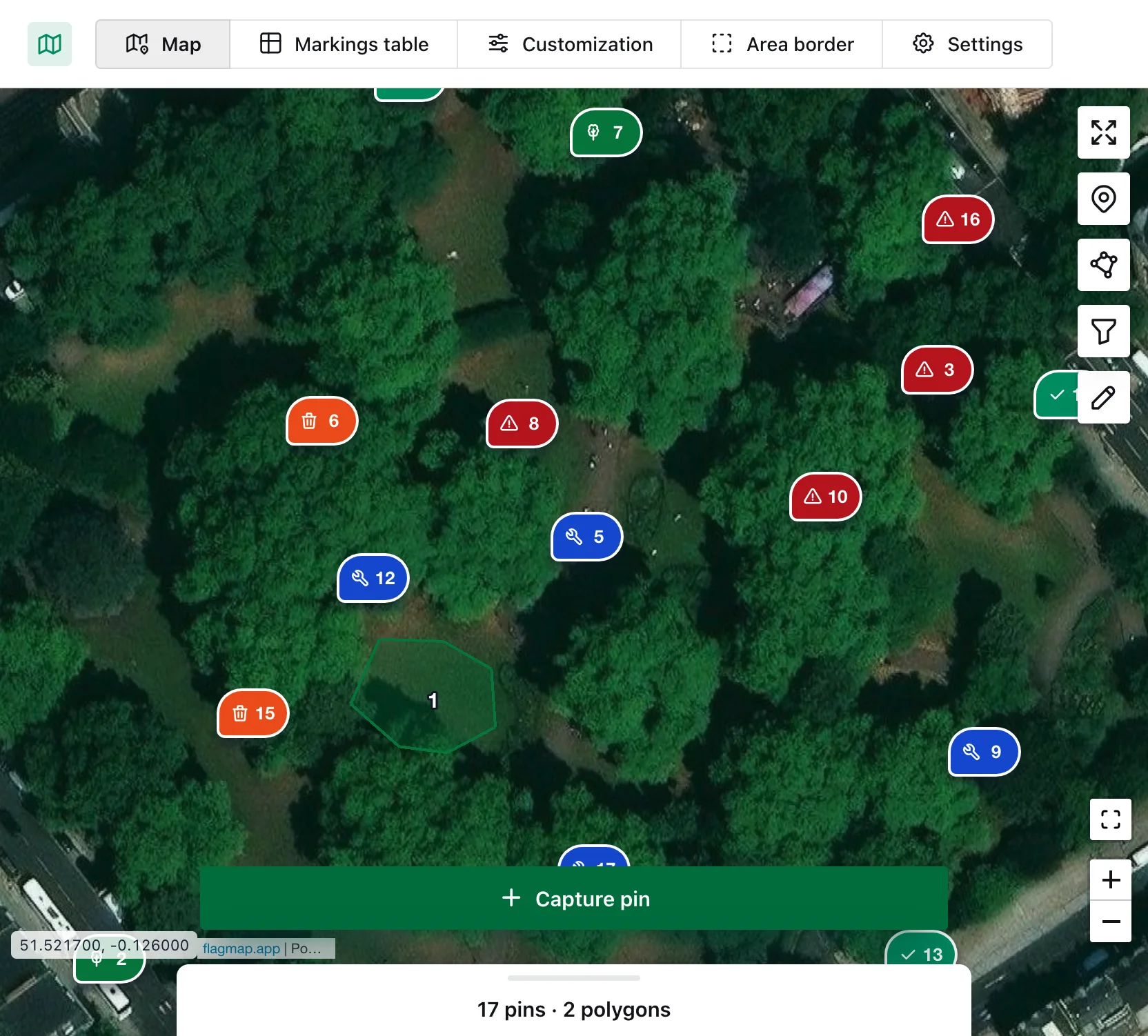
Each item marked where it is.
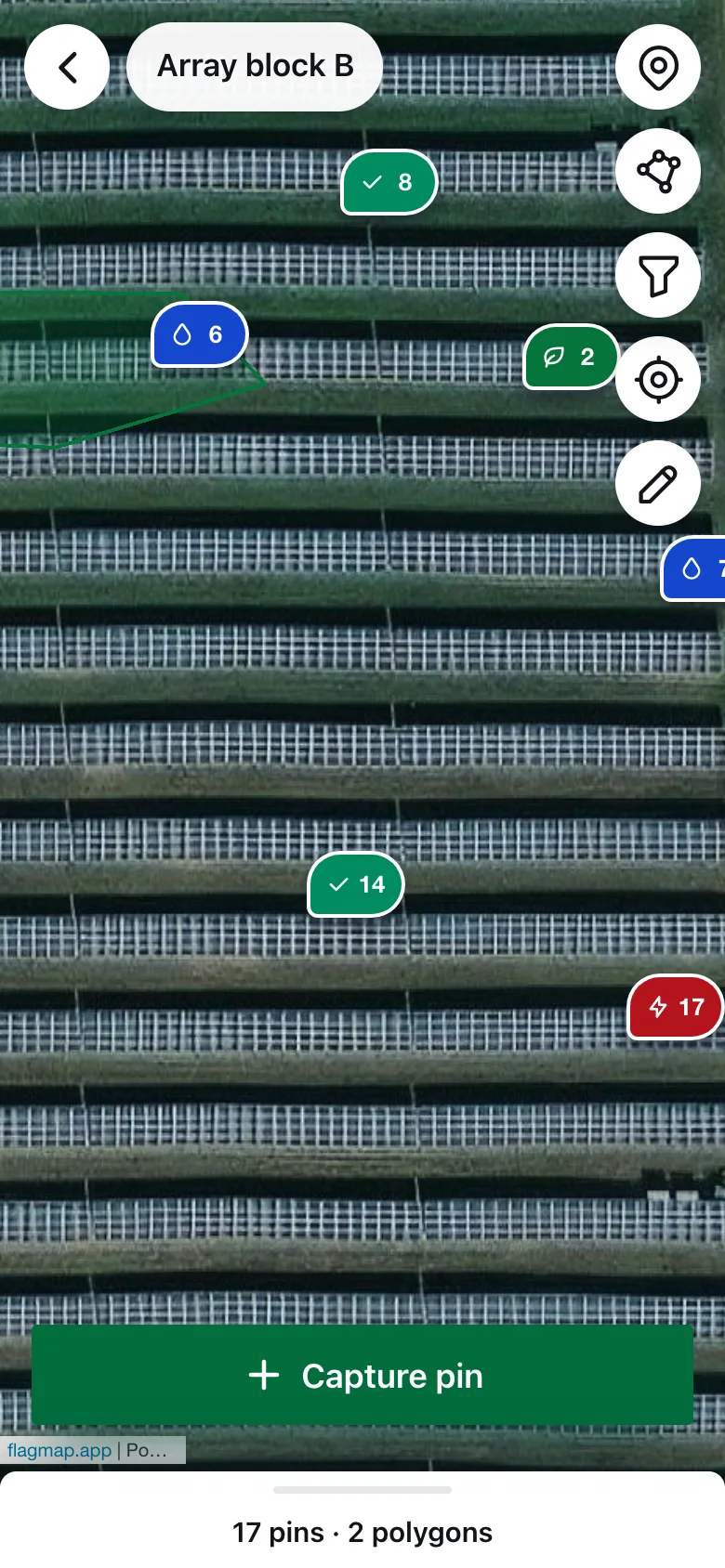
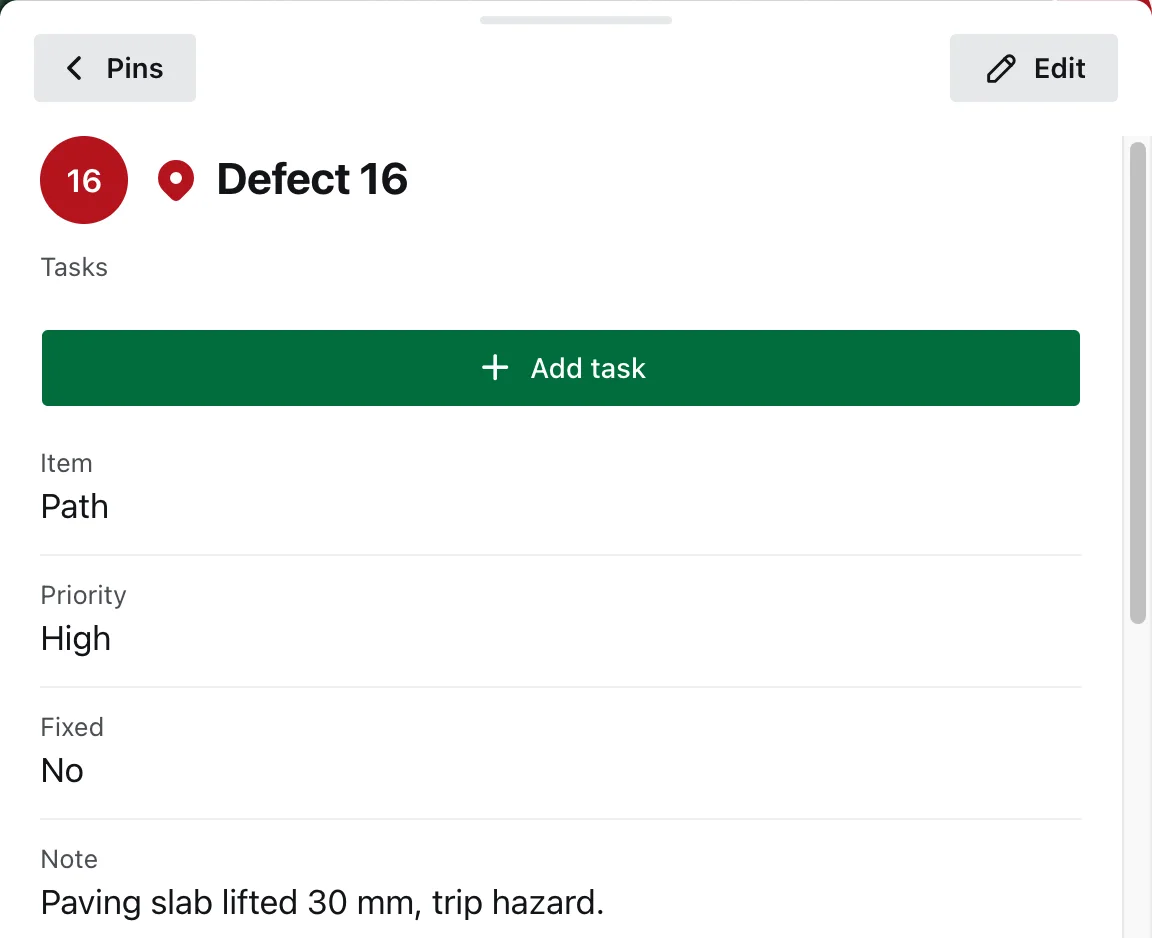
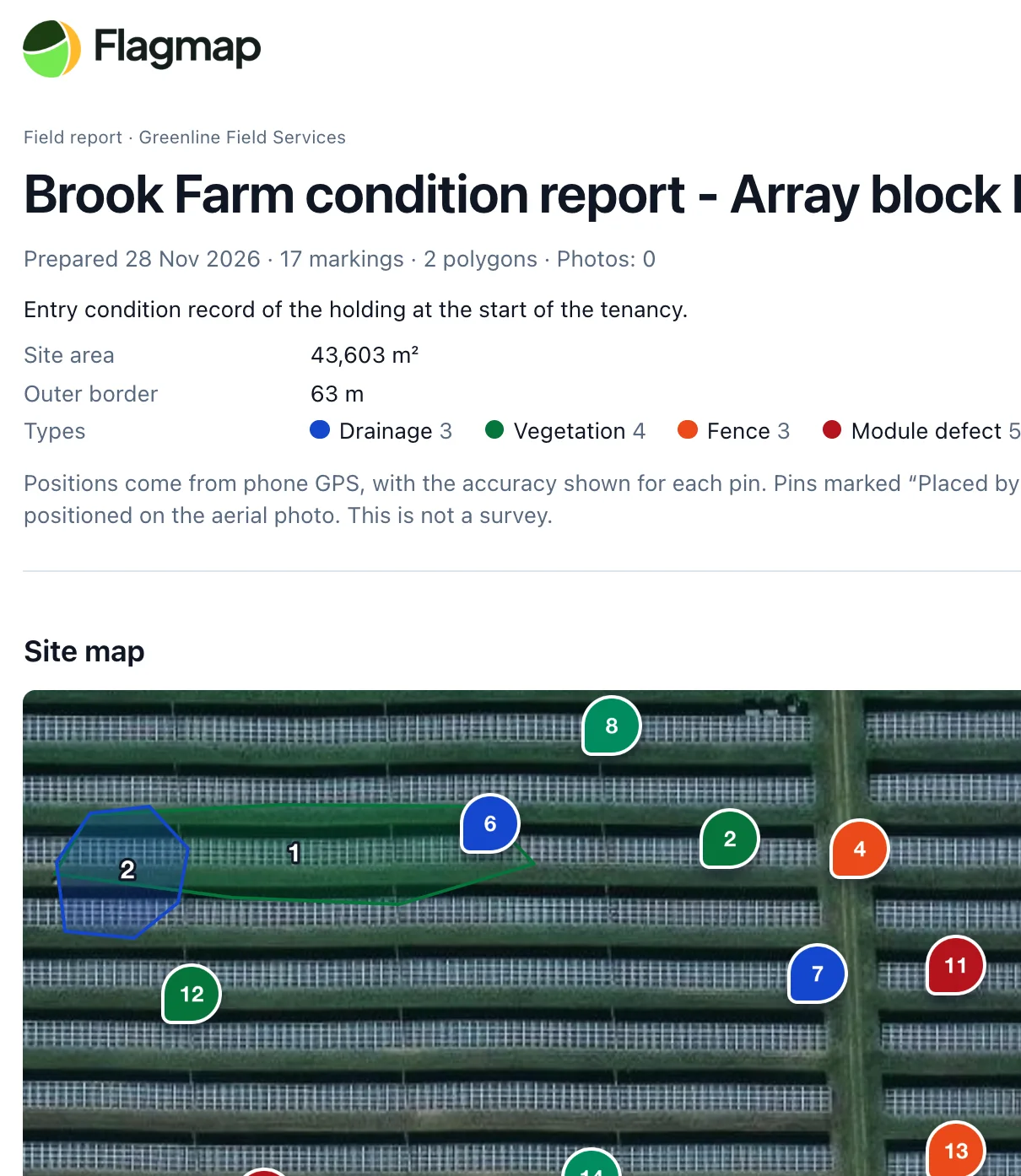
Every defect is a numbered marking on the aerial photo, in the colour of its type, with its photo and priority. Nobody has to ask where it is.
- A numbered pin or a shape for each item
- Photos attached to the item they show
- The map shows where you are standing
The list
One list, always the current one.
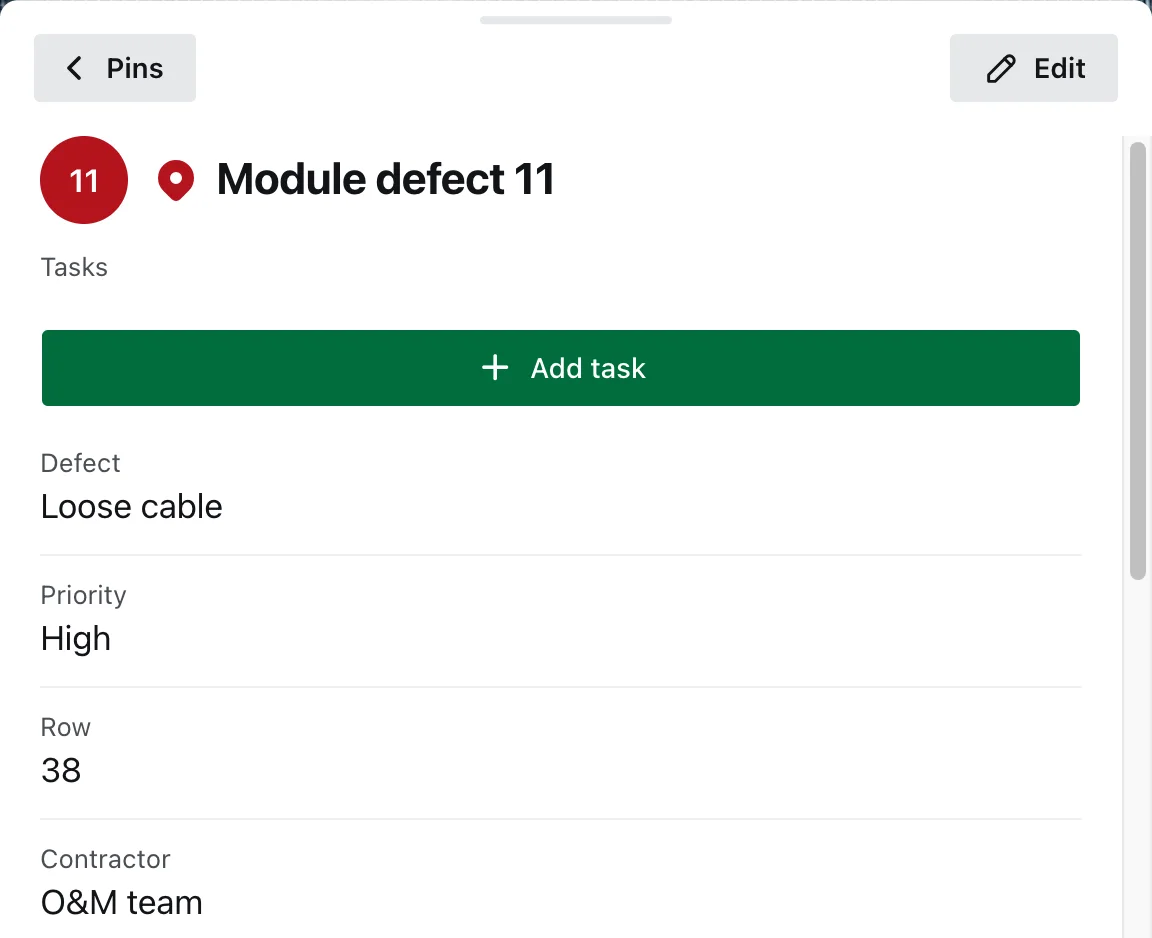
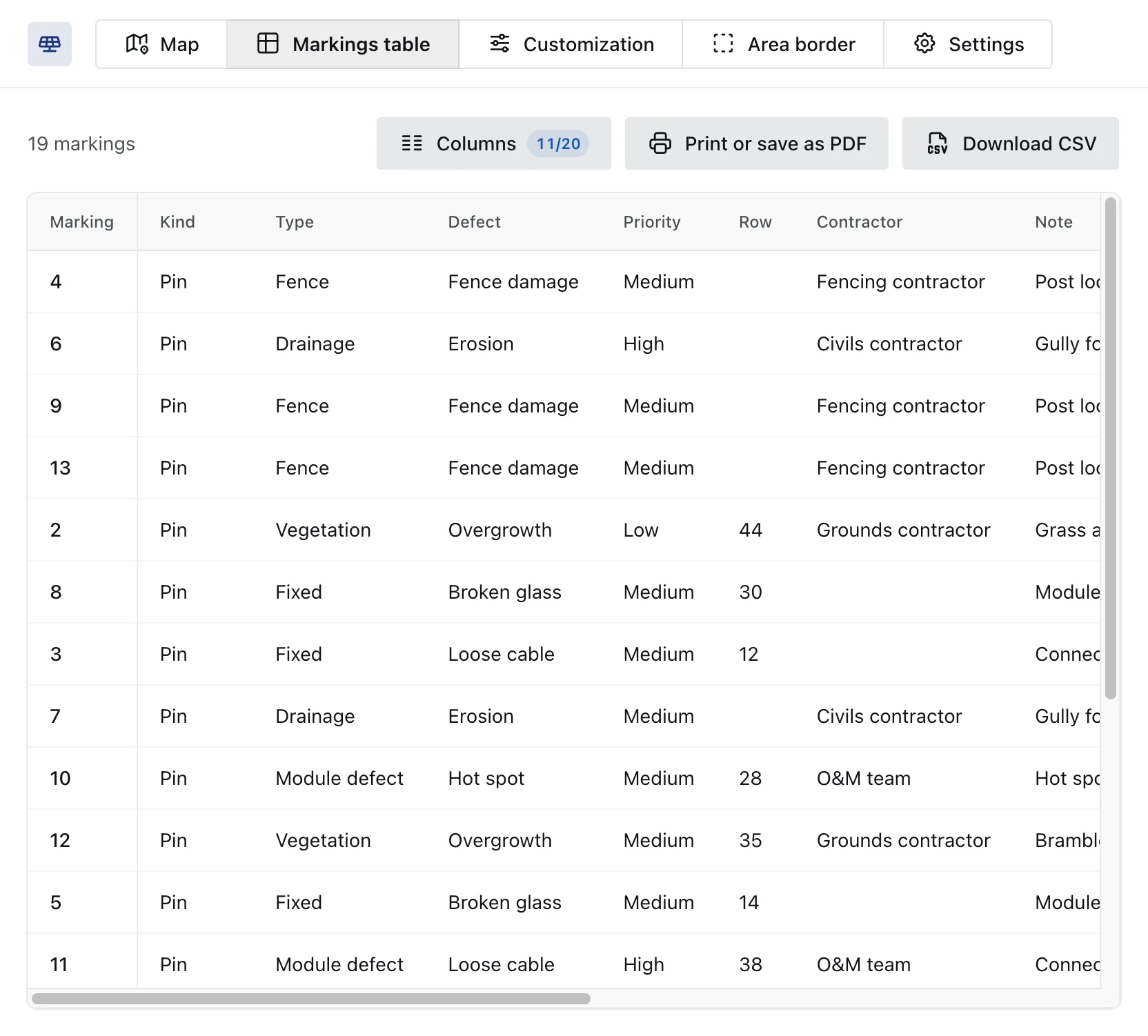
The markings table is the list: each item with its type, priority, contractor and note. Download it, or send a view-only link so everyone sees the same thing.
- Your own columns
- The list as a spreadsheet
- The report with the site map, saved as a PDF
Close out
Assign each item and see it closed.
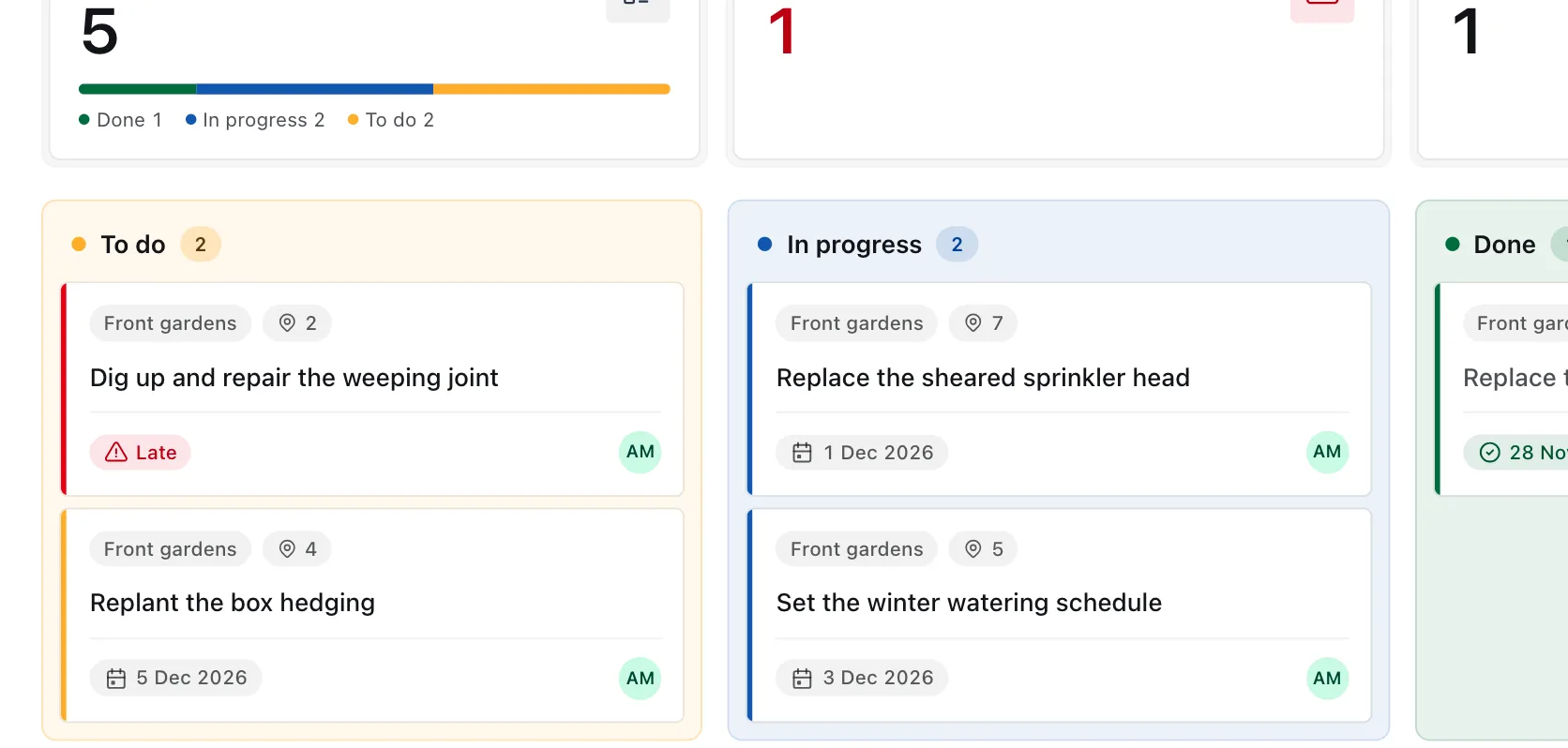
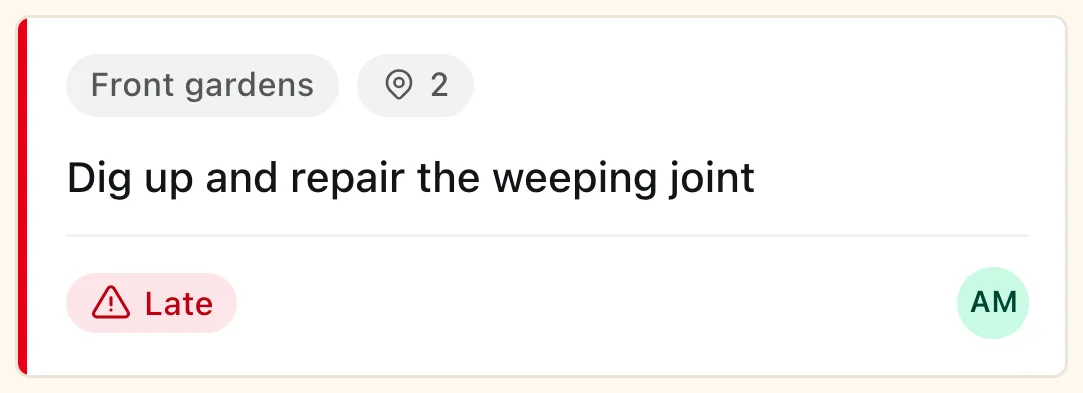
Turn any marking into a task for a person with a due date. It shows on their phone at its spot, and on the board until it is done.
- Tasks on the item they belong to Team plan
- A board of what is to do, in progress and done
- A Fixed type, with a photo of the repair
What you record
Your own types and form, set up in minutes.
Create a type for each thing you record and the form fields you want filled in. These are examples to start from.
- Item
- Gate
- Priority
- Medium
- Contractor
- Fencing contractor
- Note
- Hinge loose, gate drags
- Item
- Gate
- Fixed
- Yes
- Note
- Hinge replaced, photo taken
- Item
- Path
- Priority
- High
- Contractor
- Paving contractor
- Note
- Slab lifted 30 mm, trip hazard
What you hand over
A list with a map and a photo for every item.
Download the list as a spreadsheet, save the report with the site map as a PDF, or send each contractor a view-only link.
Spreadsheet
Every marking as a row with your columns, as a CSV file for Excel or Google Sheets.
PDF report
The site map and every marking with its details, printed or saved as a PDF.
View-only link
The live map, notes and photos for people outside your company, with no account.
Is a punch list the same as a snag list?
Yes. Punch list is the usual name in the United States, and snag list in the United Kingdom, Ireland and Australia. Both are the list of items to fix before a job is handed over.
Can I add my own columns?
Yes. Add text, number, choice, yes or no, and date fields. Each one is a line in the form and a column in the table.
Can a contractor mark an item as fixed?
Yes, with an editor role on the project, on the Team plan. They change the marking's type to Fixed and add a photo of the repair.
Does it work with no signal?
Yes. Open the site once with signal and it works there with no signal after that. Your markings sync automatically when you are back online.
Can someone outside my company see the map?
Yes. Send a view-only link. They see the map, the notes and the photos without an account and cannot change anything.
Other use cases
Start today
Leave your next site with the paperwork done
Try FieldFlag on your next site visit. It is free for one person and one site, with no time limit.